Spritesheets
Initiating Imgix Video
You must set fm=mp4 for Imgix Video parameters to take effect.
Imgix Video can generate a spritesheet — a single image grid containing frames sampled from your video — along with a companion WebVTT file that maps timestamps to regions of that image. Together, these power timeline hover previews in video players.
How it works
- Request
fm=vtton your video URL. Imgix returns a WebVTT file whose cues point to the spritesheet image and the pixel coordinates of each frame thumbnail. - The video player fetches the VTT file and uses it to display the correct thumbnail as the user scrubs the timeline.
- The spritesheet image itself is served at the same URL with
fm=spritesheetinstead offm=vtt. Players typically request this automatically after parsing the VTT.
Quick start
https://assets.imgix.net/videos/big_buck_bunny_1080p_h264.mov?fm=vttPoint your video player’s thumbnail track at this URL. No other parameters are required — Imgix will choose sensible defaults for interval, column count, and frame size.
Customization
Use the video-spritesheet-* parameters to control how the spritesheet is generated:
video-spritesheet-interval— How often (in seconds) a frame is sampledvideo-spritesheet-columns— Number of columns in the gridvideo-spritesheet-w— Width of each thumbnail in the gridvideo-spritesheet-h— Height of each thumbnail in the gridvideo-spritesheet-smart-crop— AI-powered region-of-interest croppingvideo-spritesheet-format— Image format of the spritesheet (jpg,webp,avif)
Use cases
Spritesheets are versatile tools used in various applications to enhance video content and improve user engagement. Here are some common use cases:
Trick play
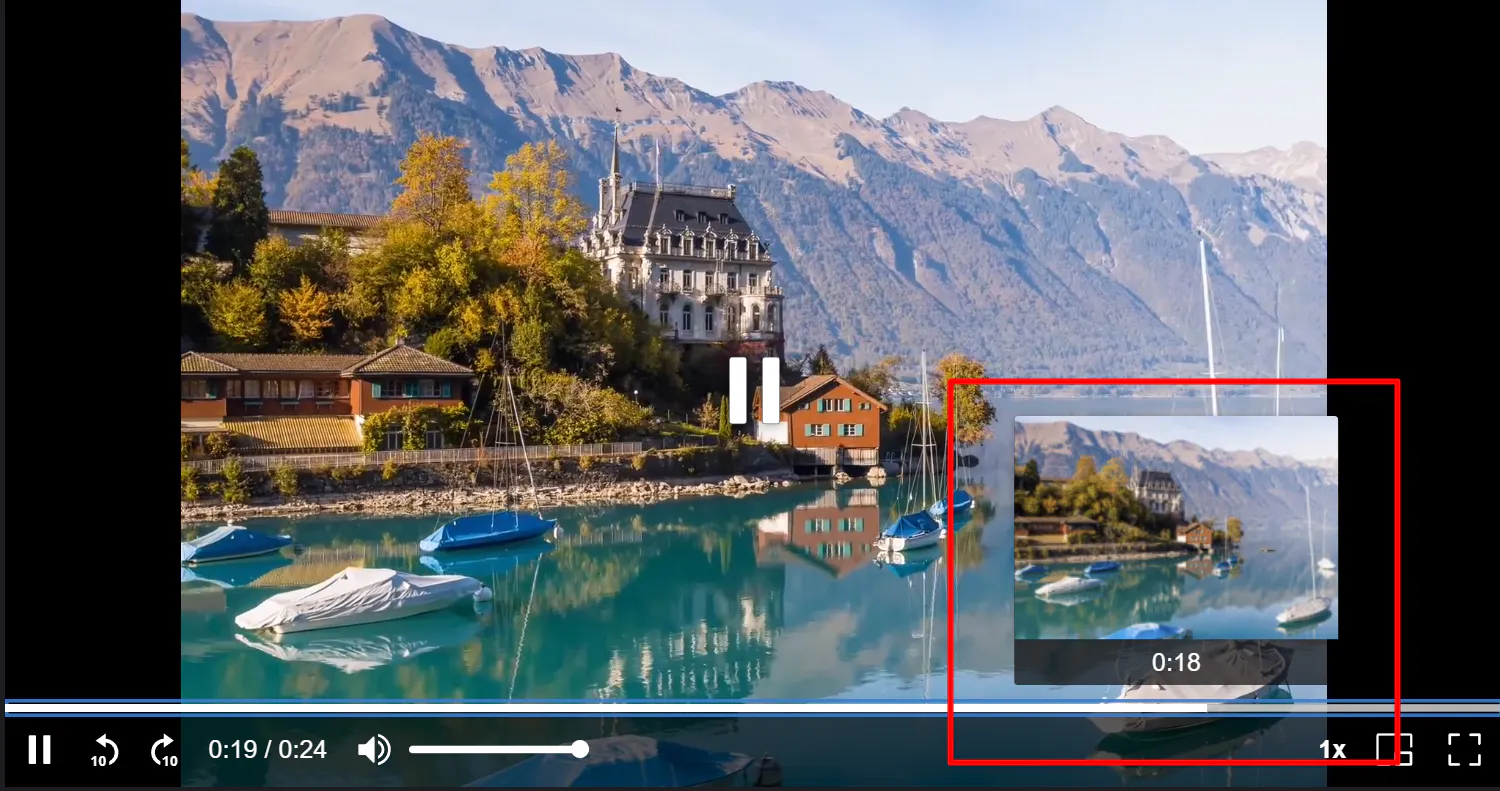
Trick play allows users to visually navigate video content by displaying thumbnail previews during scrubbing. This feature significantly enhances the user experience by:
- Providing visual context when seeking through long videos
- Enabling precise navigation to specific scenes
- Improving accessibility by offering visual cues alongside timestamps
The fm=vtt format is particularly well-suited for implementing trick play in popular video players. Point the player’s thumbnail track at your video URL with fm=vtt, and the player will automatically parse the spritesheet coordinates and display frame previews when users hover over the seek bar.
Note that ix-elements provides a built-in trick-play feature within the video player. See this article for more information about creating a user-friendly video player.
Content review
Spritesheets can streamline content review processes by providing a visual summary of video content. For example, if you have uploads that notify through Slack, you can use the spritesheet to provide a visual overview of the video:
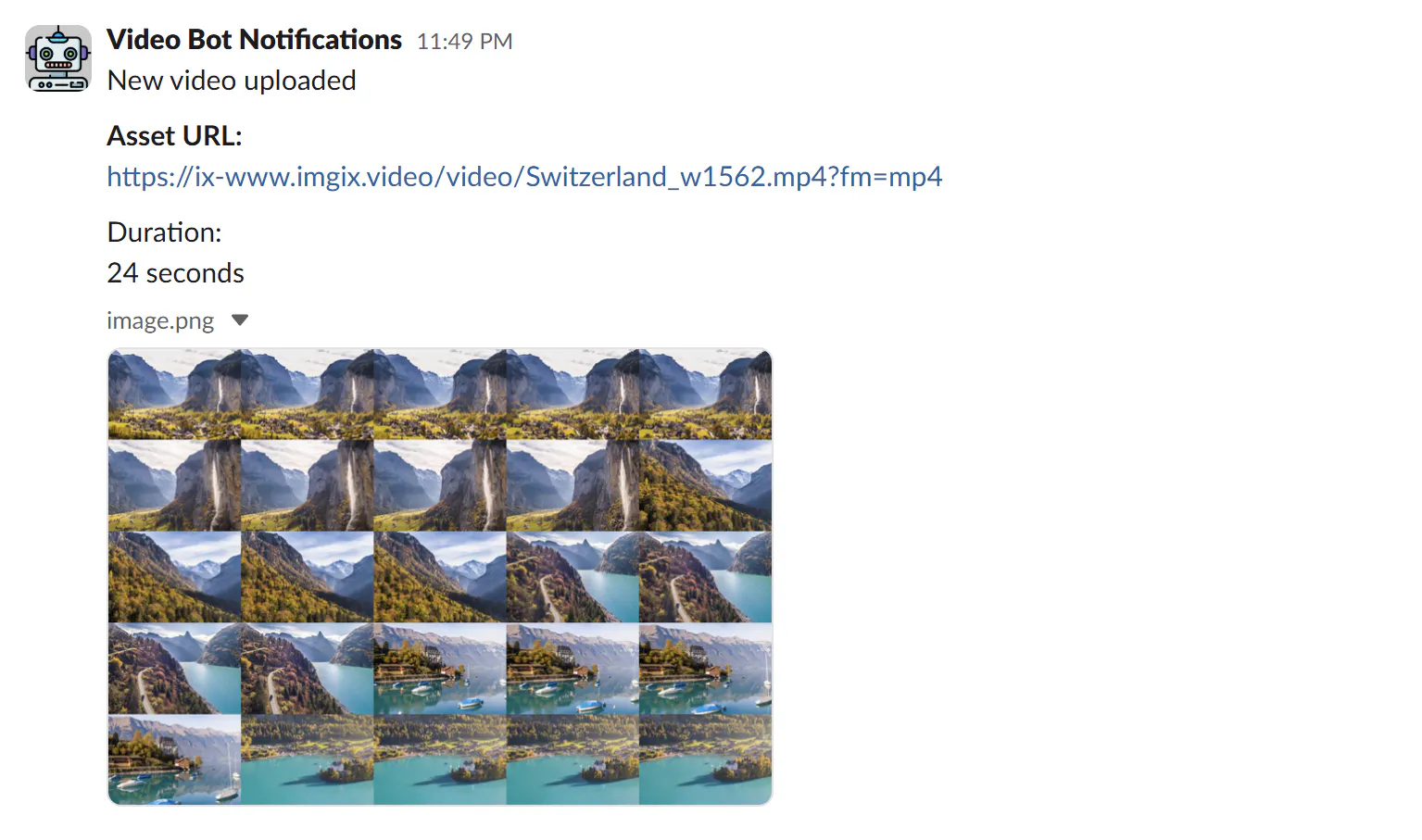
Use fm=spritesheet to retrieve the full spritesheet image for embedding in notifications, content dashboards, or moderation tools.
Thumbnail picker
Spritesheets can help automate thumbnail picker interfaces, allowing content creators or administrators to choose the most representative frame for video thumbnails.
By fetching the fm=vtt file, you can parse the spritesheet coordinates for each frame and build a custom thumbnail picker that combines them with the spritesheet image:
Video editing reference
Video editors and producers can use spritesheets as reference materials during the editing process:
- Quickly identify scene transitions for editing decisions
- Create shot lists or editing plans based on the visual overview
- Communicate specific frames or sequences to team members
- Document the visual structure of finalized content
The fm=spritesheet format is particularly handy for this purpose, providing a comprehensive visual reference in a single image file.